OpenWrt Management Platform
This topic describes how to use the OpenWrt management platform for platform information check and wireless configuration.
Access LuCI Web Interface
-
Insert the flashed SD card into the board.
-
Set up the devices as shown below.
Figure 1. Top View 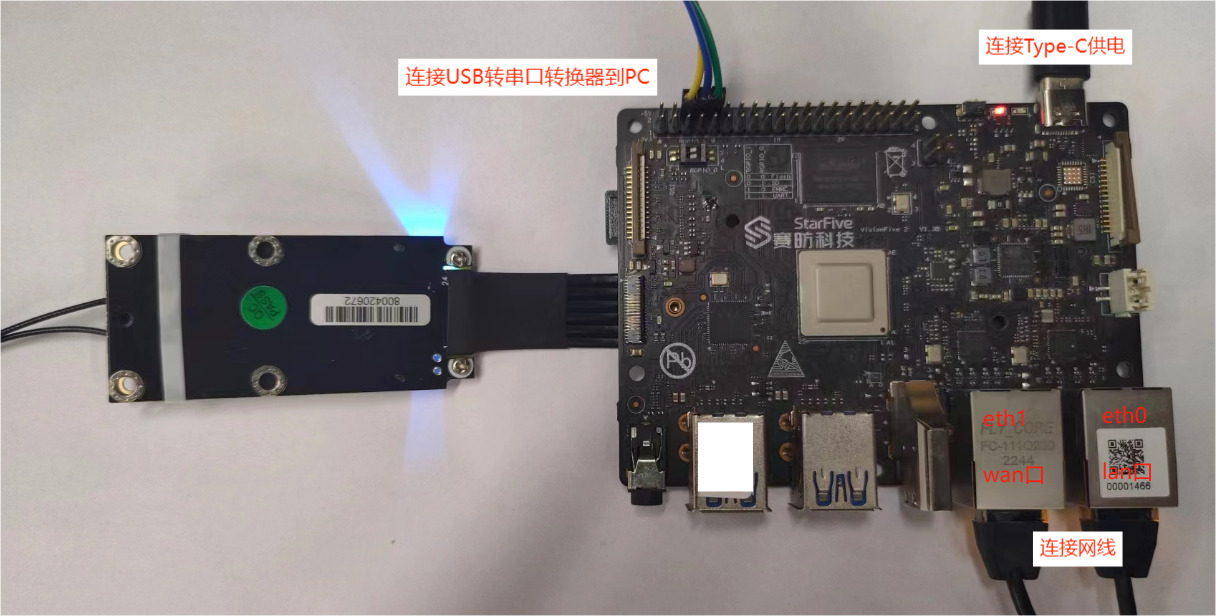
Figure 2. Bottom View 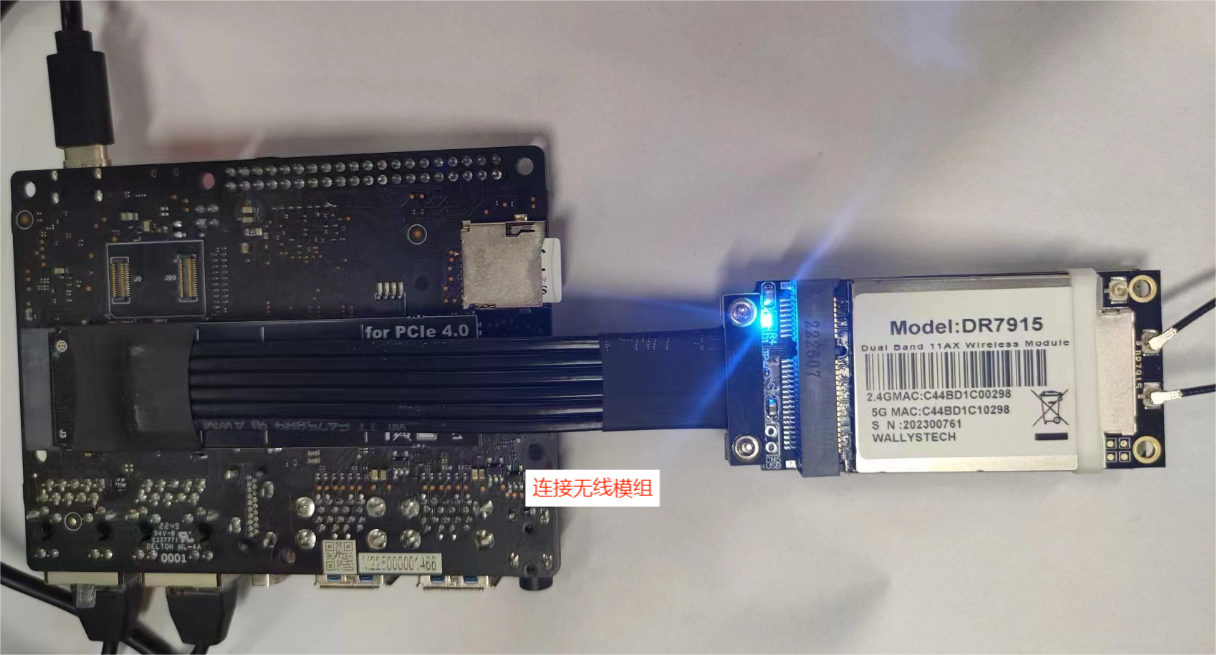
-
Open a browser and navigate to http://192.168.1.1/. Log in with:
- Username: root
- Password: None. set a password after first login
Check Platform Information
After login, the following information is available:
- System Overview: firmware version, kernel, uptime (Status → Overview)
- Network Interfaces: Ethernet status, IP assignments (Network → Interfaces)
- Device Information: hardware model, CPU, memory (System → Administration)
Wireless Configuration
Navigate to Network > Wireless, two
radio devices appear:
- radio0: 2.4 GHz band
- radio1: 5 GHz band
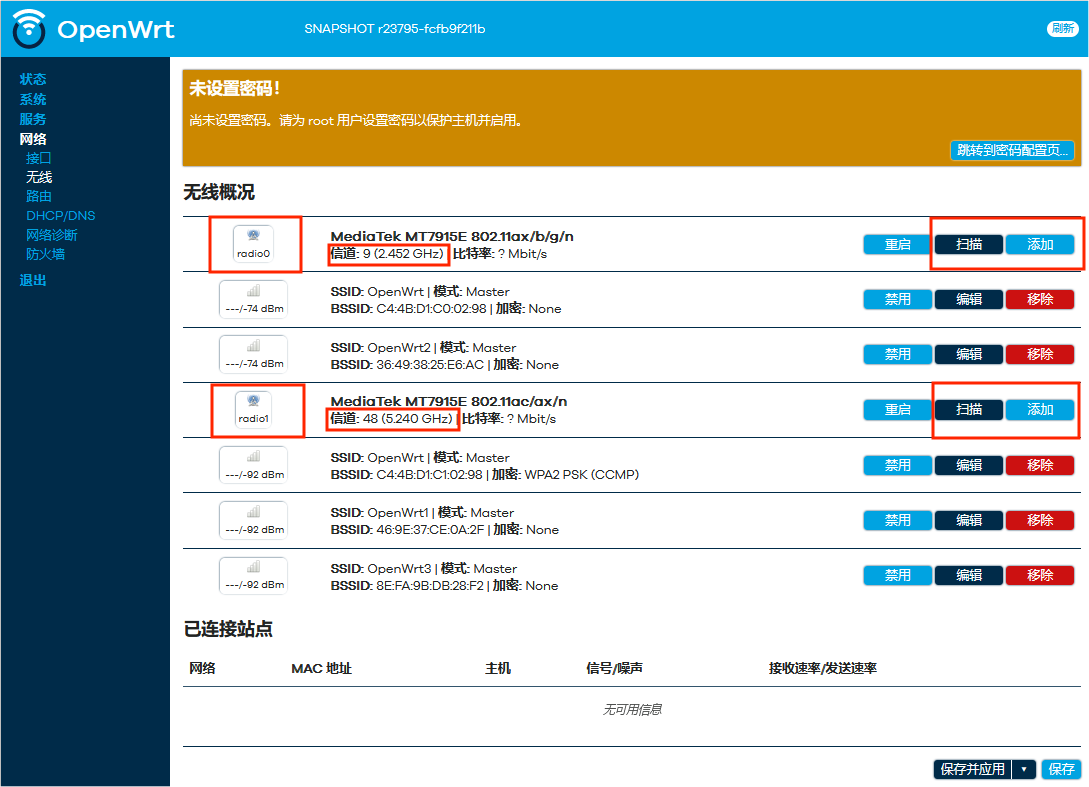
Wireless configuration builds up in three levels about these two devices– each level
assumes you have completed the previous one.
| Level | What It Does |
|---|---|
| OpenWrt_management_platform.html#OpenWrt_management_platform__ph_z14_zpq_tjc | Set up one wireless interface as STA (client) or AP (access point) |
| OpenWrt_management_platform.html#OpenWrt_management_platform__ph_c5g_hrq_tjc | Run AP on both bands with the same SSID so clients see one network |
| OpenWrt_management_platform.html#OpenWrt_management_platform__ph_s3m_xrq_tjc | Add extra wireless interfaces beyond the default one-per-radio |
Basic Setup
Each radio operates independently and can be set to one of two modes:
- STA Mode: The board connects to an existing Wi-Fi network as a client.
- Click Scan next to the desired radio (radio0 or radio1).
- Select the target network from the scan results.
- Enter the network password if prompted and then click Join Network.
- AP Mode: The board broadcasts its own Wi-Fi network.
- Click Add next to the desired radio.
- Configure the following
- Click Save.
Dual Band
This configuration builds on OpenWrt_management_platform.html#OpenWrt_management_platform__ph_z14_zpq_tjc by enabling AP mode on both radios with matching settings, so client devices see
a single network name and automatically connect to the optimal band.
- Create an AP on radio0 (2.4 GHz).
- Create an AP on radio1 (5 GHz) with the same SSID, encryption method, and
password.
If the SSIDs differ between the two radios, clients will see them as two separate networks.
- Keep all settings identical except the channel. For example, channel 9 for 2.4 GHz and channel 48 for 5 GHz
Multiple SSID
By default, each radio provides exactly one wireless interface. This section explains
how to create additional interfaces.
- Open the wireless configuration
file:
vi /etc/config/wireless - Add a new
wifi-ifaceblock for each additional interface:config wifi-iface 'default_radio2' option device 'radio1' ——required WiFi information option network 'lan' option mode 'ap' option ifname 'lan2' option encryption 'none' option ssid 'OpenWrt2' option disabled '0' option macaddr 'random' config wifi-iface 'default_radio3' option device 'radio0' ——required WiFi information option network 'lan' option mode 'ap' option ifname 'lan3' option encryption 'none' option ssid 'OpenWrt3' option disabled '0' option macaddr 'random' -
Save the file. Return to the OpenWrt platform > Network > Wireless, and click Save.