Flash OS to a Micro-SD Card
Burn a Debian image to a micro-SD card so that it can run on VisionFive 2.
-
Insert a micro-SD card into the computer through a micro-SD card reader, or by a built-in card reader on a laptop.
-
Download the latest Debian image.Note:
The latest Debian images are located in the 202308 folder. Make sure you use the latest image.
Since there are several boot modes as described in VisionFive 2 Boot Mode Settings, different Debian images are also prepared, including:
- NVME image
- SD image
- eMMC image
Choose the image to download according to your preference.
- Extract the .bz2 file.
The image downloaded is in an img.bz2 compressed format. To extract the image, use an extract tool or the
bzip2command.To extract using
bzip2, run the following command. It removes the original img.bz2 file.bzip2 -d <filename>.img.bz2
To preserve the original file, use:
bzip2 -dk <filename>.img.bz2 -
Download BalenaEtcher. You use it to flash the Debian image to a micro-SD card.
-
Install BalenaEtcher and open it.
Figure 1. Install BalenaEtcher 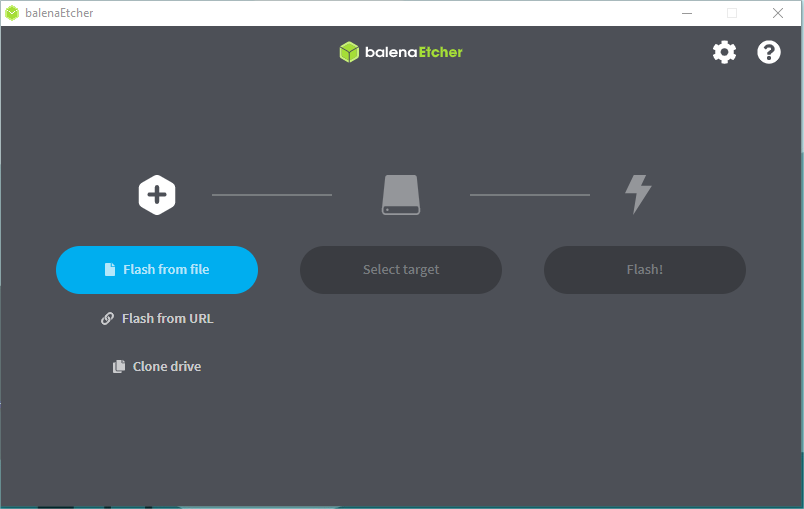
-
Click Flash from file and select the location of the image where we just unzipped the following file: starfive-jh7110-VF2-<Version>.imgTip: <Version> indicates the version number of the Debian image.
-
Click Select target and select the connected micro-SD card.
-
Click Flash! to start the flash task.