Compile, Install, and Update Linux Kernel
Perform the following actions to compile and install the Linux kernel. You can compile the kernel, device tree, and driver module as a whole or individually.
Obtain Debian Version
- Download the latest Debian operating system.
- Flash the latest operating system to the micro-SD card. For details, see Flash OS to a Micro-SD Card.
Set up Software Environment
- Execute the following command to install the essential tools and libraries
required to compile the Linux
kernel.
$ sudo apt-get install build-essential linux-source bc kmod cpio flex libncurses5-dev libelf-dev libssl-dev dwarves bison git gcc-riscv64-linux-gnu g++-riscv64-linux-gnu vim tree
- Execute the following command to check out the source
code:
$ git clone https://github.com/starfive-tech/linux.git
- See the Debian release information, find
and switch the kernel source code to the corresponding version. The
following command example switches to the Debian 202403
branch.
$ git checkout JH7110_VF2_515_v5.11.3
- Execute the following command to set the default configuration of compiling
Linux
kernel:
make <Configuration_File> CROSS_COMPILE=riscv64-linux-gnu- ARCH=riscvwhere,
Configuration_Fileisstarfive_visionfive2_defconfig. - (Optional) Modify the configuration file.
$ make ARCH=riscv CROSS_COMPILE=riscv64-linux-gnu- menuconfig
For example, to change the CPUFreq governor from ondemand to performance, under Devices Drivers > SPU Frequency scaling, change the Default CPUFreq governor from ondemand to performance and uncheck the ondemand option.Figure 1. Performance 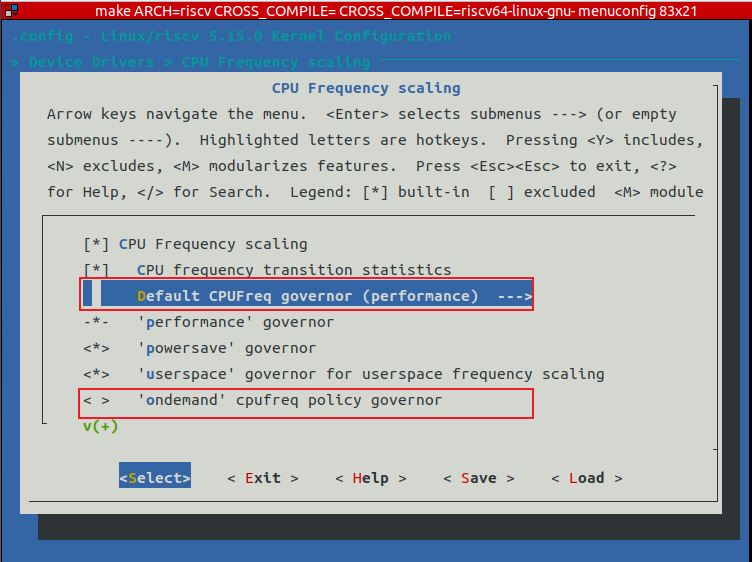
Compile and Install Kernel Components as a Whole
You can compile and install all kernel components at a time, including kernel configuration file (config), symbol table (System.map), compressed kernel image (vmlinuz), device tree files (dtb), and kernel modules.
You can choose between local and cross compile and install, depending on your compilation environment.
- Use
bindeb-pkgto create the Debian kernel install package.cd linux/ cp arch/riscv/configs/starfive_visionfive2_defconfig .config make ARCH=riscv olddefconfig make ARCH=riscv -j$(nproc) bindeb-pkg
- Install the kernel to the operating
system.
dpkg -i *.deb
- Execute the following command to set the default
configuration of compiling the
kernel:
make <Configuration_File> CROSS_COMPILE=riscv64-linux-gnu- ARCH=riscvwhere,
Configuration_Fileisstarfive_visionfive2_defconfig. - Execute the following command to compile the kernel image and header files,
and then package them as Debian
packages:
$ nice make ARCH=riscv CROSS_COMPILE=riscv64-linux-gnu- bindeb-pkg -j$(nproc)
KDEB_COMPRESS=xz LOCALVERSION=’local_version’
Tip:local_versionis the version of the kernel, which sets to-performancein this example.$ nice make ARCH=riscv CROSS_COMPILE=riscv64-linux-gnu- bindeb-pkg -j$(nproc) KDEB_COMPRESS=xz LOCALVERSION=-performance
After compilation, the following deb files and dtb files are generated in the upper directory:
Figure 2. Compiled Files 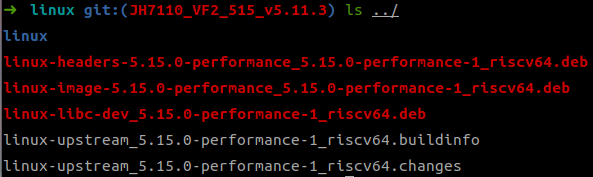
- Transfer the compiled files through network (SCP) or portable storage medium
(USB) to VisionFive
2.
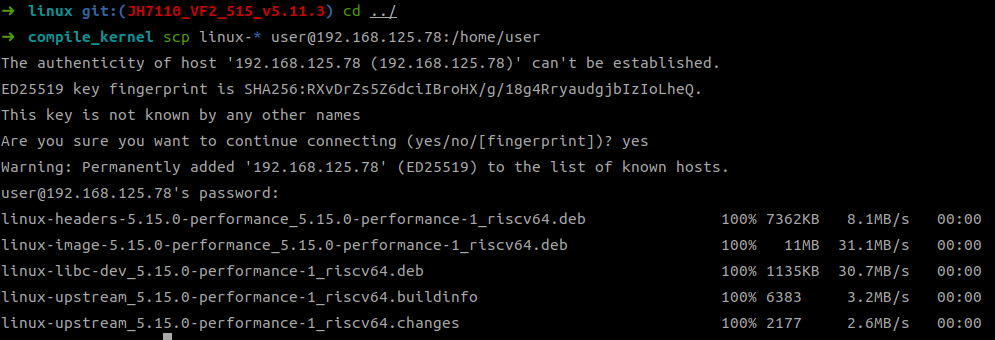
The following figure shows an example output of file transfer over the
network:
- Execute the following command to install the
kernel.
$ dpkg -i linux-headers-5.15.0-performance_5.15.0-performance-1_riscv64.deb
$ dpkg -i linux-image-5.15.0-performance_5.15.0-performance-1_riscv64.deb
$ dpkg -i linux-libc-dev_5.15.0-performance-1_riscv64.deb
After installation, the files under /boot are updated.Figure 3. Files under /boot 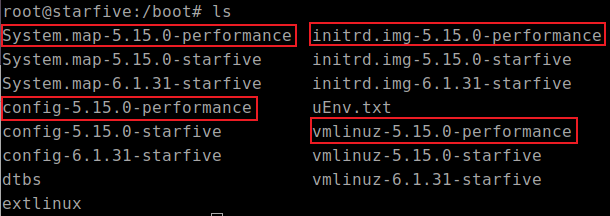
Compile and Install Kernel Components Individually
You can compile and install kernel components individually. Choose the kernel components you want to install or update.
- Execute the following command to set the default configuration of compiling
the Debian
kernel:
make <Configuration_File> CROSS_COMPILE=riscv64-linux-gnu- ARCH=riscvwhere,
Configuration_Fileisstarfive_visionfive2_defconfig. - After setting up the software environment, execute the following command to
compile the source
code:
$ make CROSS_COMPILE=riscv64-linux-gnu- ARCH=riscv -j$(nproc)
- Execute the following command to create a directory where the kernel files
are to be
stored.
$ mkdir <compiled_kernel_file_dirctory>
- Execute the following command to cross-compile the Linux kernel and install
the kernel files such as config,
system.map, and vmlinuz in the
specified
directory.
$ make CROSS_COMPILE=riscv64-linux-gnu- ARCH=riscv INSTALL_PATH=<compiled_kernel_file_dirctory> zinstall -j$(nproc)
The following figure is an example output where the kernel files are installed in the compiled directory.
- Copy the device tree (dtb) files to the
<compiled_kernel_file_directory>.
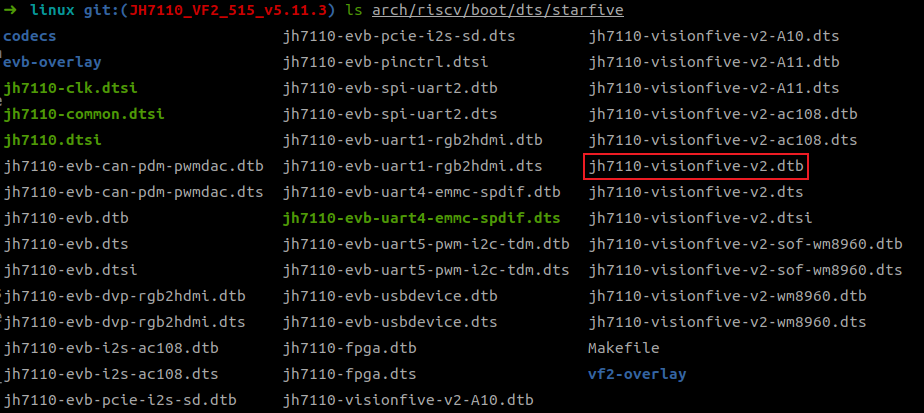
$ cp arch/riscv/boot/dts/starfive/jh7110-visionfive-v2.dtb <compiled_kernel_file_dirctory>
To compile and install the kernel modules:
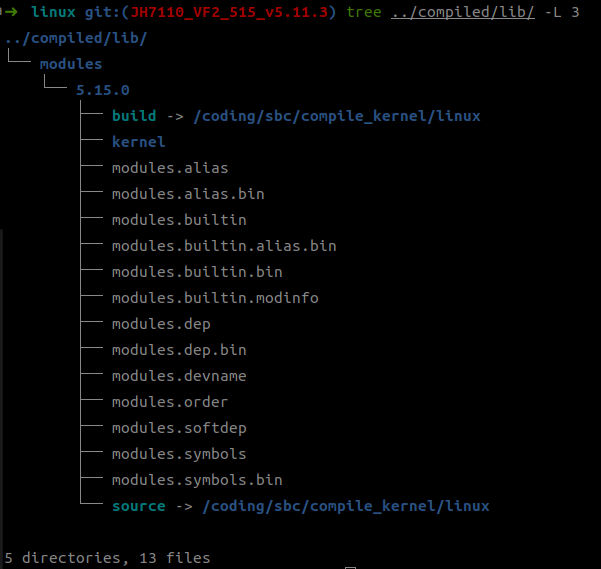
$ make ARCH=riscv CROSS_COMPILE=riscv64-linux-gnu- INSTALL_MOD_PATH=../<compiled_kernel_file_dirctory> modules_install
Update Kernel
- Place the new Linux kernel files System.map, config, and vmlinuz under the /boot path.
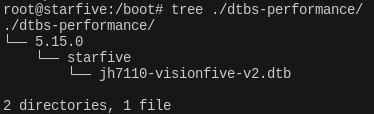
- Place the new device tree file jh7110 visionfive v2.dtb
in a path corresponding to the kernel version. For example,
/boot/dtbs performance/5.15.0/starfive
- Place the new kernel module files in the /lib/modules directory.
- Generate an initramfs file for the new kernel under the
/boot
path.
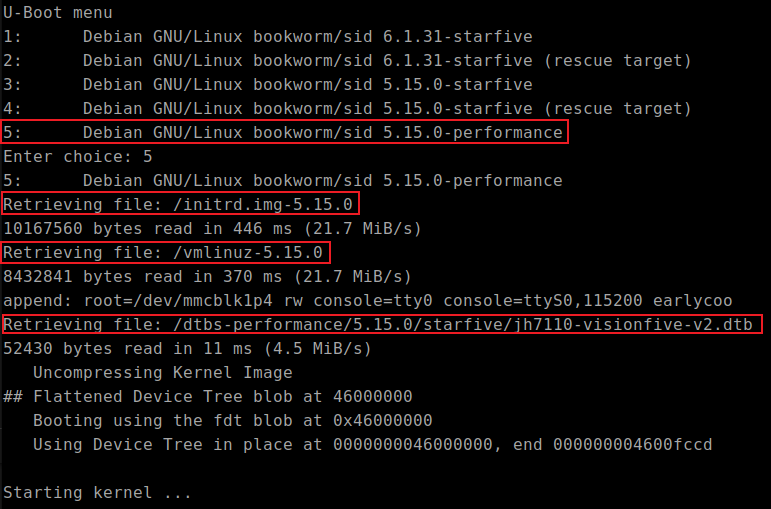
update-initramfs -c -k 5.15.0 -b /bootFigure 5. initrd.img 
Add Boot Option for New Kernel
extlinux/extlinux.cn file to add an boot option for the
new kernel: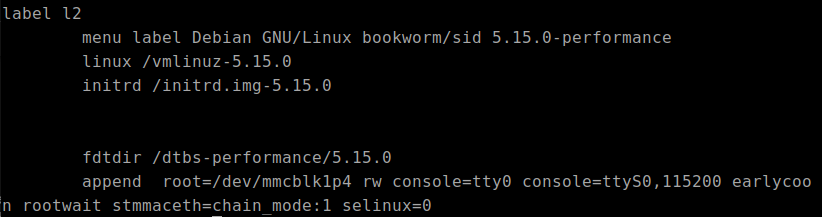
initrd.img-5.15.0-starfive is used. Change
initrd.img-5.15.0 to
initrd.img-5.15.0-starfive.