Display Controller Debug
U-Boot stores its debug settings in the following file: freelight-u-sdk/u-boot/driver/core/Kconfig.
Prerequisites
Before debugging the display controller or testing display outputs, prepare for the
following:
- Enable modetest in menuconfig
- Verify the connection status. You can find such information in the startup
logs as follows.
Figure 1. Start-up Logs 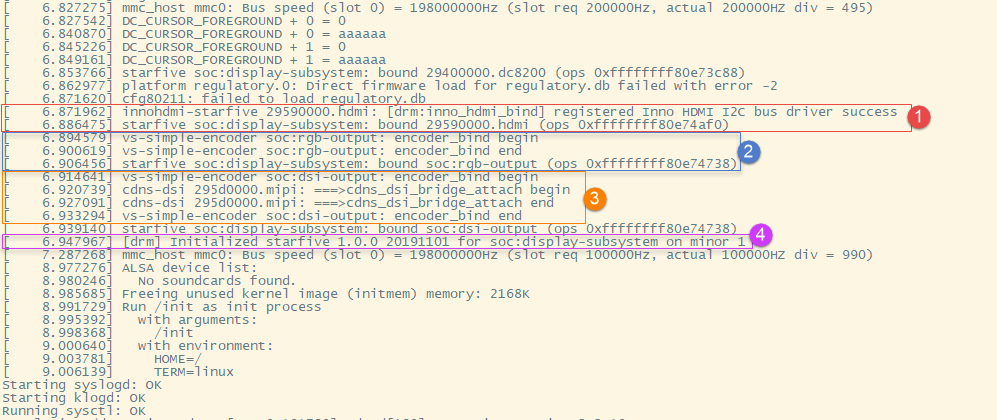
Legend Description ① HDMI work status ② RGB2HDMI work status ③ MIPI work status ④ Display controller work status
Debug Display Function
To debug the display function, run the following command to verify the display functions and connection status.
modetest -M starfiveOutput examples:
- Output 1:
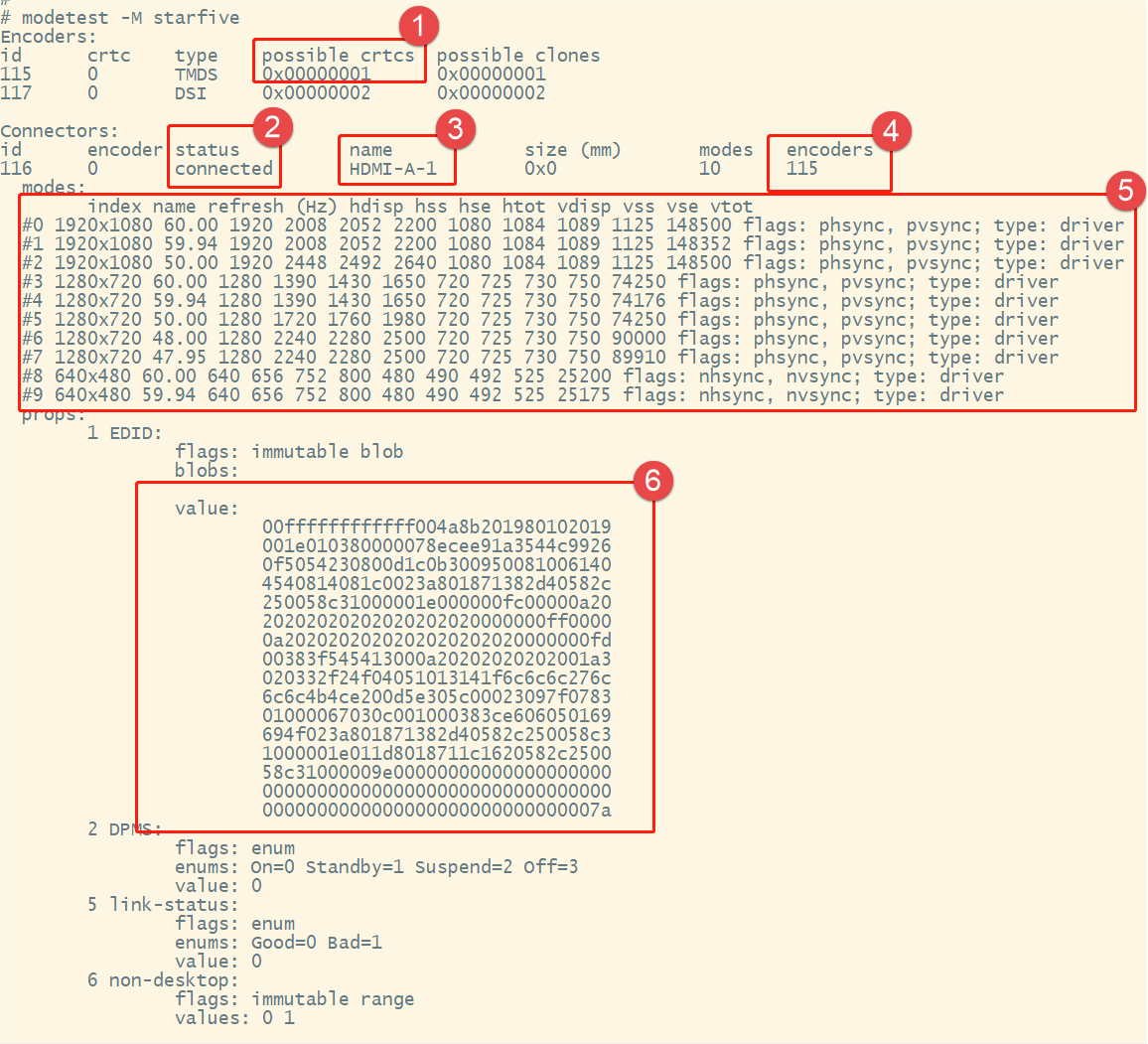
Legend Label Description ① possible crtcs Available Cathode Ray Tube Controller (CRTC) devices ② status Whether the display connector is connected or not ③ name The name (type) of the display connector ④ encoders The connected encoders ⑤ modes The supported display modes ⑥ value The Extended Display Identification Data (EDID) of the screen - Output 2:
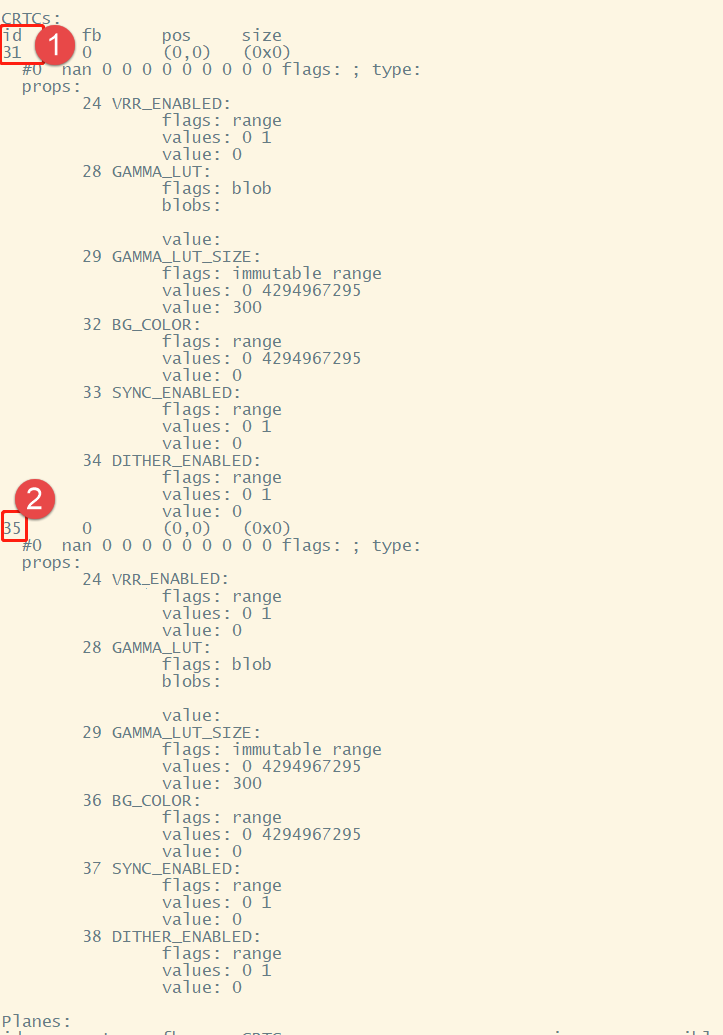
Legend Label Description ① id The CRTC 0x00000001 mentioned in possible crtcs, which means the CRTC is available for use. ② id The CRTC 0x00000002 mentioned in possible crtcs, which means the CRTC is available for use. Note: If the displayed CRTC is 0x00000003, both of the CRTCs are available for use. - Output 3:
Figure 2. Debug Output 3 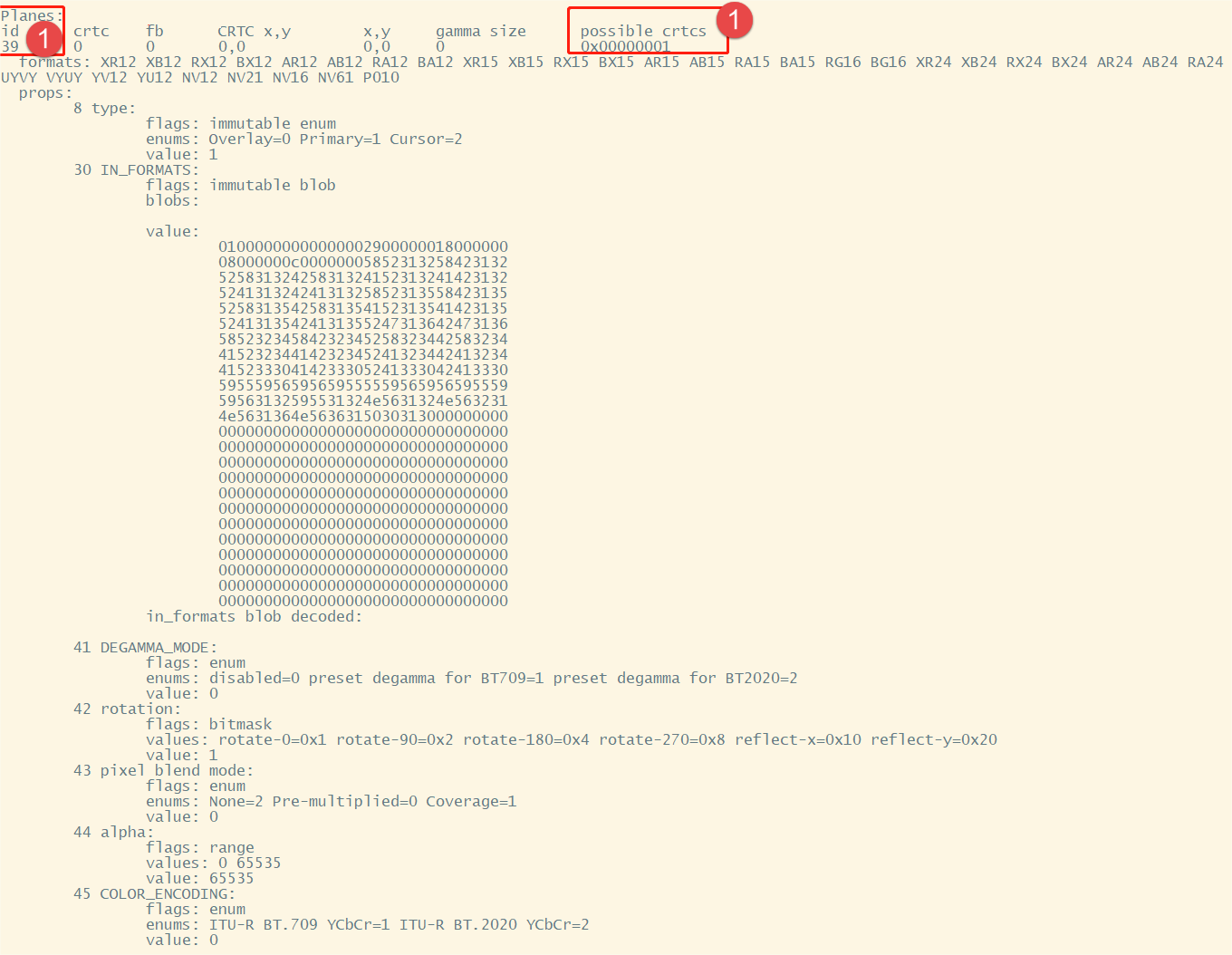
Legend Description ① The CRTC and its connected plane
Test Display Outputs
To test a display output, run the following
command:
modetest -M starfive -D 0 -a -s <Connector ID>@<CRTC ID>: <Resolution> -P <Plane ID>@<CRTC ID>: <Resolution>@<Format> -Ftiles For example:
-
For HDMI output:
modetest -M starfive -D 0 -a -s 116@31:1920x1080 -P 39@31:1920x1080@RG16 -Ftiles -
For MIPI output:
modetest -M starfive -D 0 -a -s 118@35:800x480 -P 74@35:800x480@RG16 -
For RGB2HDMI output:
modetest -M starfive -D 0 -a -s 118@35:1920x1080 -P 74@35:1920x1080@RG16 -Ftiles -
If your board is connected with both a MIPI and a RGB2HDMI output devices, the following commands show an example for testing on each of them.
- For
MIPI:
modetest -M starfive -D 0 -a -s 120@35:800x480 -P 74@35:800x480@RG16 - For
RGB2HDMI:
modetest -M starfive -D 0 -a -s 118@35:1920x1080 -P 74@35:1920x1080@RG16 -Ftiles
- For
MIPI: