SPI Configuration
Configure Kernel Menu for SPI Controller
-
Under the root directory of freelight-u-sdk, run the following command to enter the kernel menu configuration GUI.
make linux-menuconfig -
Enter the Device Drivers menu.
-
Enter the SPI support menu.
Figure 1. SPI Support 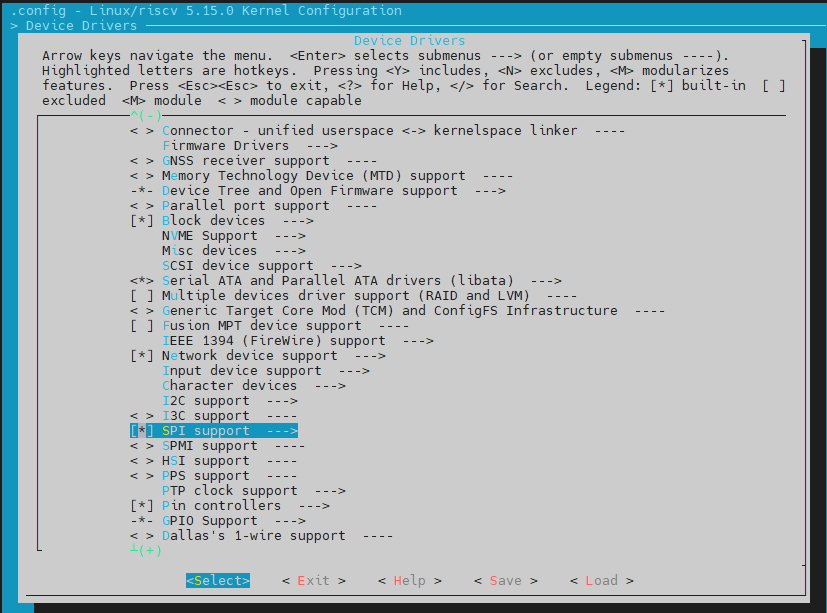
-
To enable the SSP controller driver, select the SSP controller option.
Figure 2. SSP Controller 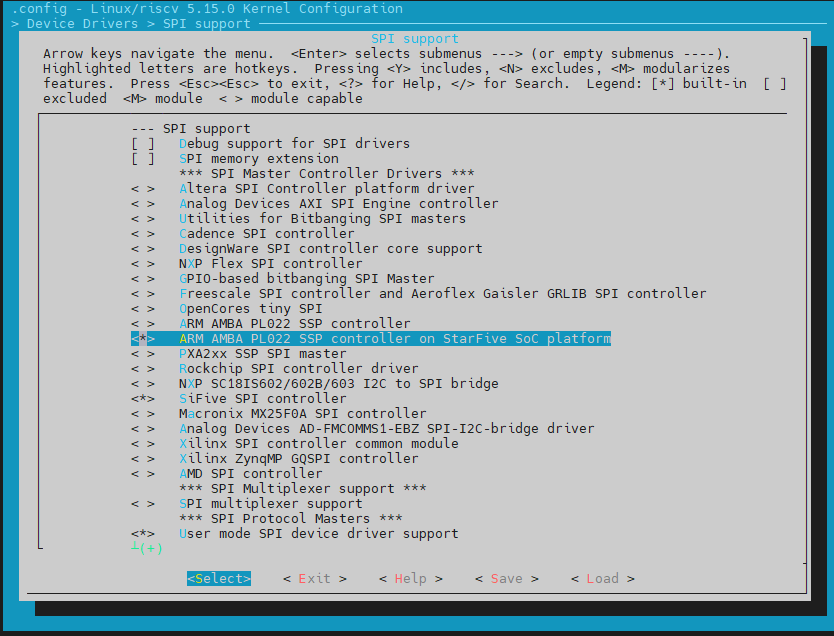
-
Save your change and exit the kernel configuration dialog.
Board-level Configuration
The following code example is a board-level configuration for the SPI0 controller and
its attached slave device.
&spi0 {
        pinctrl-names = "default";
        pinctrl-0 = <&ssp0_pins>;
        status = "enabled";
        spi_dev0: spi@0 {
                compatible = "rohm,dh2228fv";
                pl022,com-mode = <1>;
                spi-max-frequency = <10000000>;
                reg = <0>;
                status = "okay";
        };
};
For the SPI0 controller:
- pinctrl-names, pinctrl-0: Assigns the default pin control configurations using the ssp0_pins setting.
- status: Sets the controller to enabled state.
For the SPI slave device under the SPI0 node:
- compatible: The compatibility information of the driver.
- pl022, com-mode: The communication mode of the driver.
The following values are available.
- 0: Polling.
- 1: Interrupt
- 2: DMA
- spi_max_frequency: The maximum frequency of the slave device
- reg: The register address offset of the slave device.
- status: Status of the slave device. The following
values are available.
- okay: The slave device is working properly.
- disabled: The slave device has been disabled.
Configure Kernel Menu for SPI Device
-
Under the root directory of frrlight-u-sdk, run the following command to enter the kernel menu configuration GUI.
make linux-menuconfig -
Enter the Device Drivers menu.
-
Enter the SPI support menu.
-
Select the User mode SPI device driver support option.
-
Save your change and exit the kernel configuration dialog.