Connect Slave Device via Modbus RTU
Modbus RTU enables serial communication between the OpenPLC master and slave devices. OpenPLC supports Modbus RTU master mode on Linux and Windows. Microcontroller-based devices (such as Arduino) without an OS are supported only as Modbus RTU slaves.
Hardware Preparation
| Item | Quantity | Note |
|---|---|---|
| VisionFive 2 or VisionFive 2 Lite | 1 | Configured as master device |
| Arduino UNO | 1 | Configured as slave device |
| Breadboard | 1 | For Slave board wiring |
| LED | 2 | Preferably two different colors |
| Button | 2 | For digital input testing |
| USB-to-Serial adapter | 1 | Corresponding to the enabled type in the kernel options. |
| Dupont wires | Several | For breadboard connections |
Hardware Setup
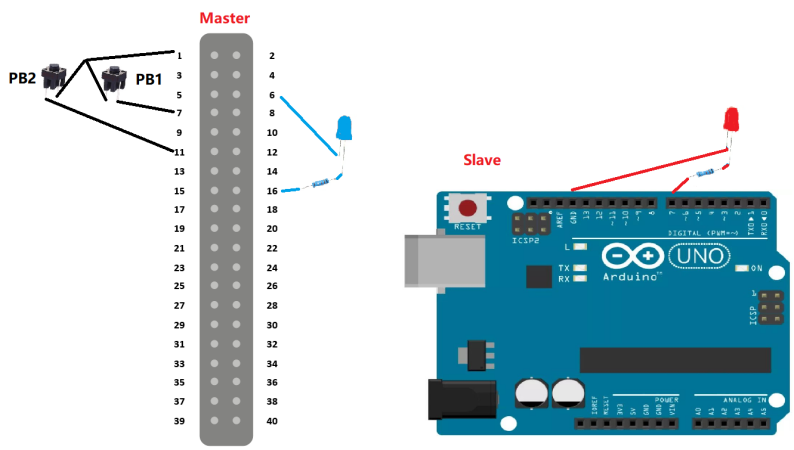
Configure Arduino UNO
Upload the default Blank Program to the Arduino UNO.
-
Connect Arduino UNO and PC by USB.
-
Open the OpenPLC runtime and prepare the program needed to run Arduino UNO as a Modbus-TCP slave device.
-
Click the icon, as in Step 1, to open the detailed settings. In the Board type field, select Arduino UNO and select the corresponding COM port. Select Enable Modbus RTU (Serial) to enable communication between the Arduino UNO and the master device via serial.
Figure 2. Arduino UNO 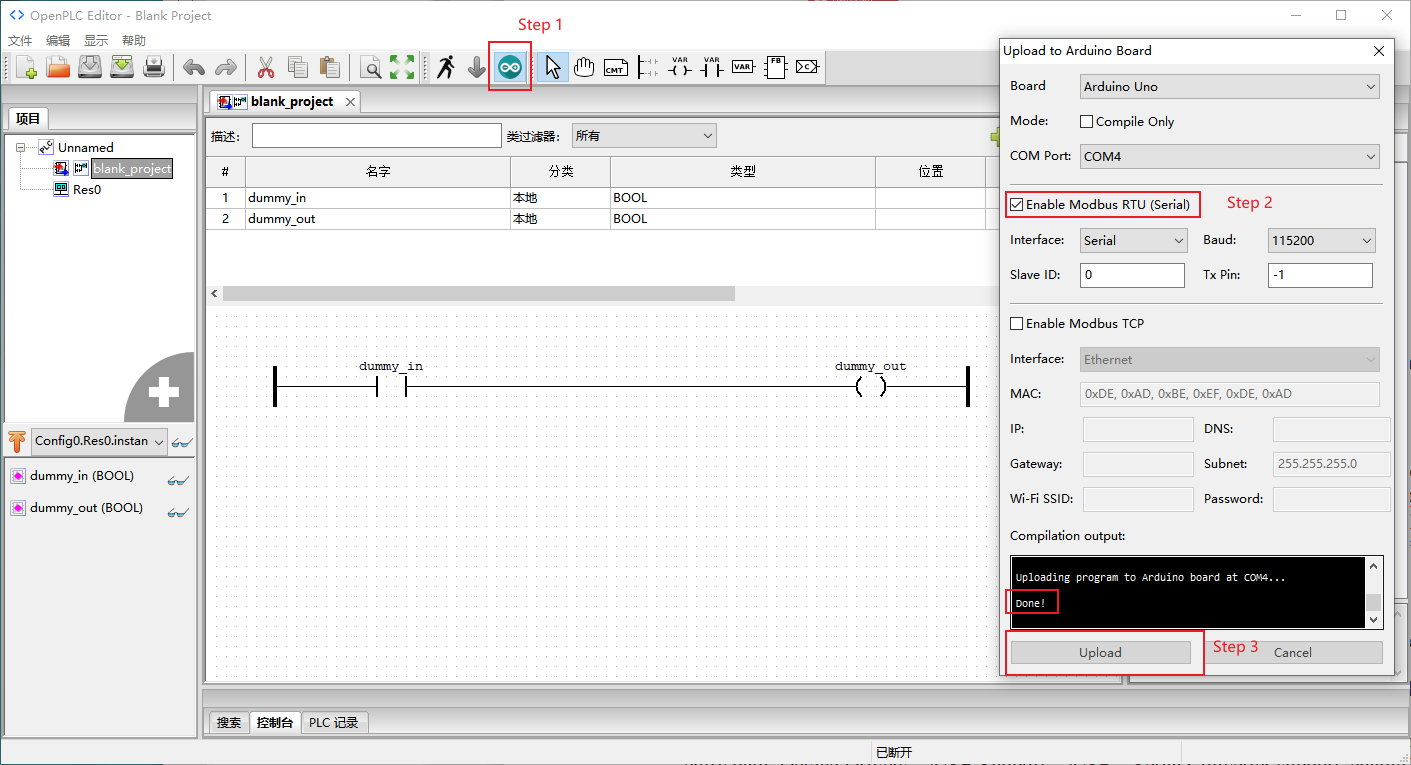
-
Click the Upload button to compile and upload the program and OpenPLC micro-runtime to the Arduino UNO. The message Done is displayed when the upload process is completed.
Add Slave Device on Master Board
-
Open the OpenPLC web interface:
http://<Master-IP>:8080 -
Navigate to Slave Devices in the left menu.
-
Click Add New Device.
Figure 3. Configure Slave Device 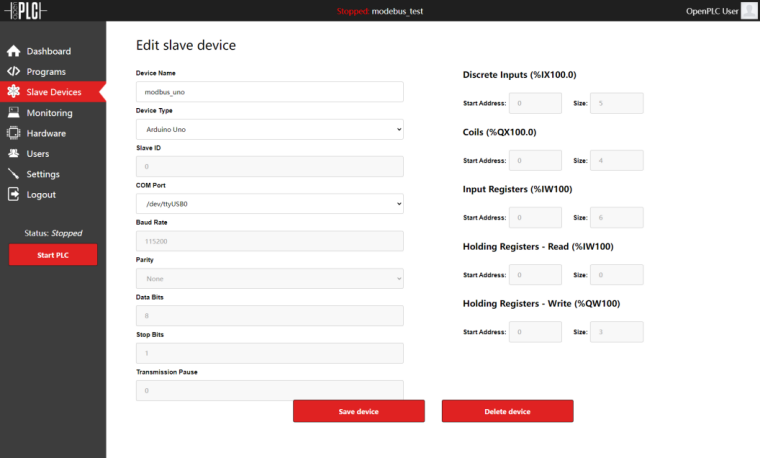
-
As OpenPLC supports Arduino UNO by default, only the device name, device type, and connected port need to be configured.