This topic covers the operation of the OpenPLC runtime through the web interface,
including program upload, monitoring, configuration, and user management.
Access OpenPLC Web Interface
After installation and system reboot, access the OpenPLC HMI through a web
browser:
Determine the IP address of the VisionFive 2 or VisionFive 2 Lite
board
.
Navigate to port 8080:
http://<visohFive2-IP>:8080.
Log in with the default credentials:
Username: openplc
Password: openplc
Start Runtime
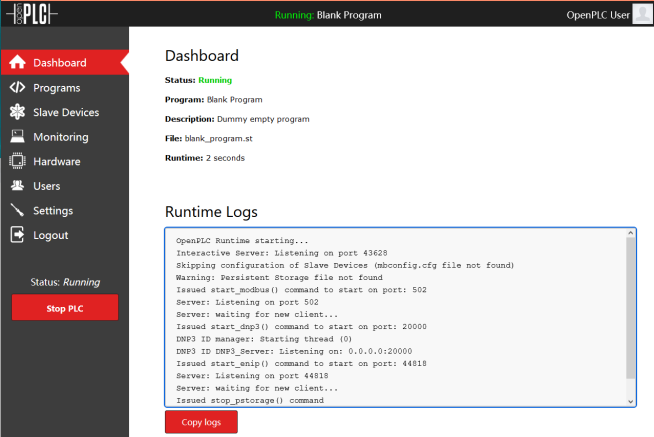
The Dashboard menu displays information about OpenPLC status,
active program, and runtime logs.
To start the OpenPLC runtime:
Navigate to the Dashboard menu.
Click the Start PLC button.
Monitor the Runtime Log field for runtime status
information and any error messages.Figure 1. Dashboard
Upload a Program
Upload a new program or revert an existing program using the
Programs menu.
To upload a new program:
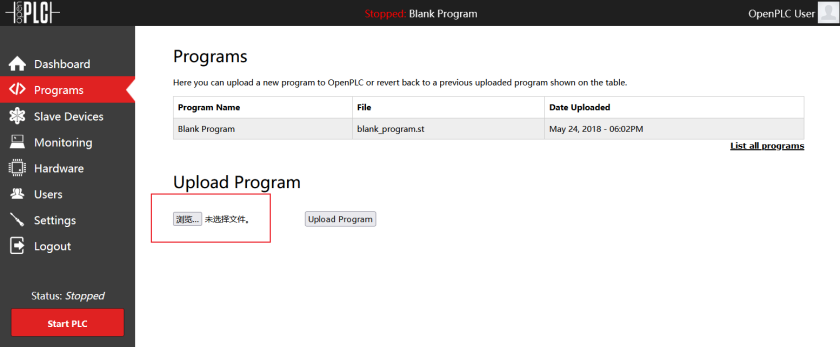
Click View to choose a new program:Figure 2. Uploading a New Program
Select an .st file for the new program and click
Open.
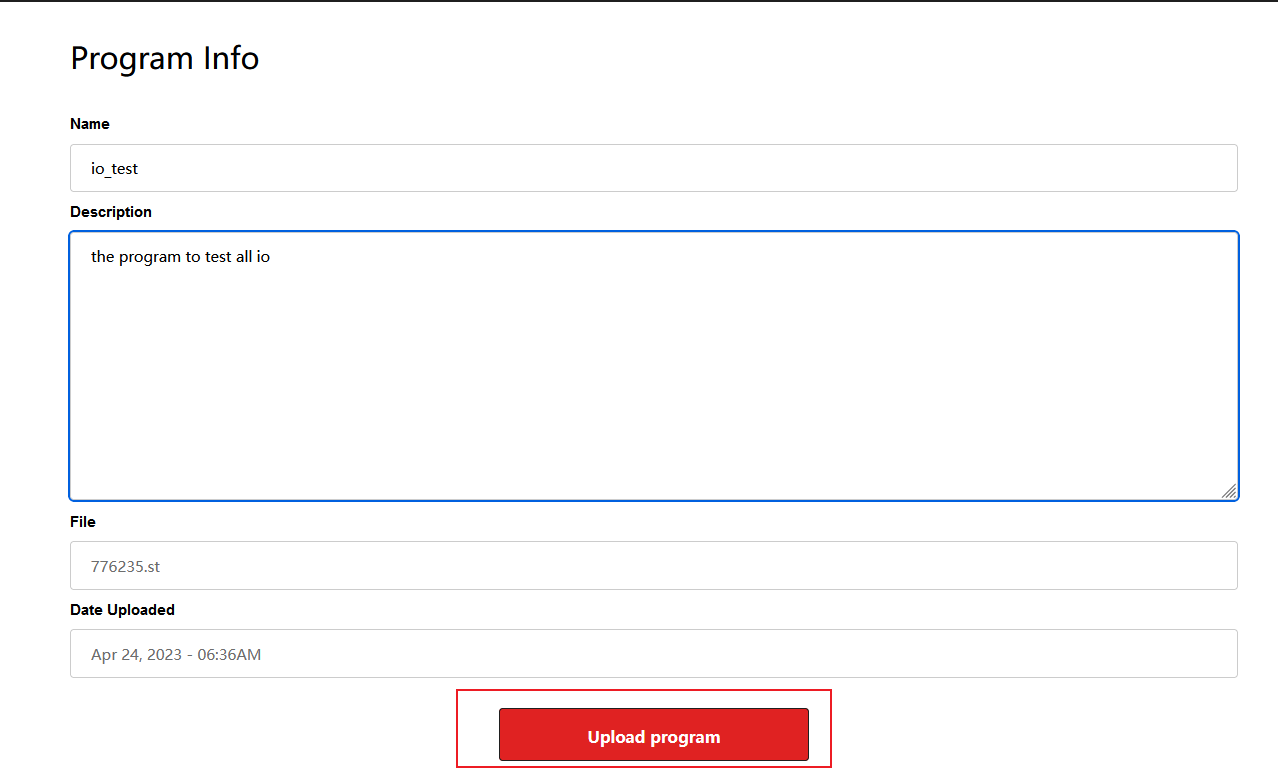
Click Upload Program, complete the information,
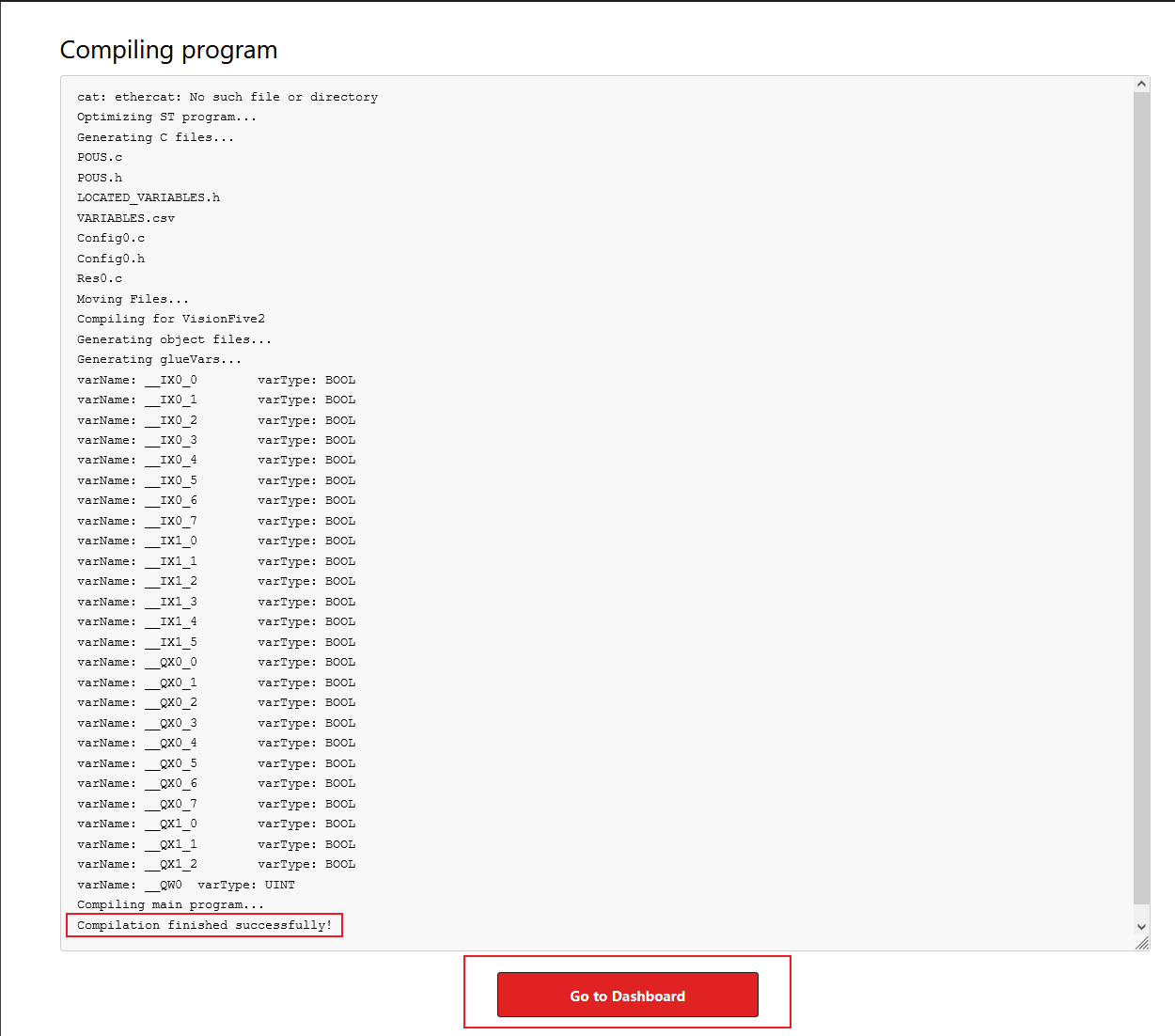
and click Upload ProgramFigure 3. Example Program InformationResult: After the successful compilation, the compilation
log is printed, and information that "Compilation finished
successfully!" is displayed.Figure 4. Compiling Program
Navigate to the Go to Dashboard menu and click
Start PLC to run the uploaded program.
Connect Modbus Slave Devices
OpenPLC Runtime can run on VisionFive 2 or VisionFive 2 Lite as a Modbus master to
communicate with external slave devices via Modbus TCP and Modbus RTU protocols so
as to achieve PLC I/O expansion.
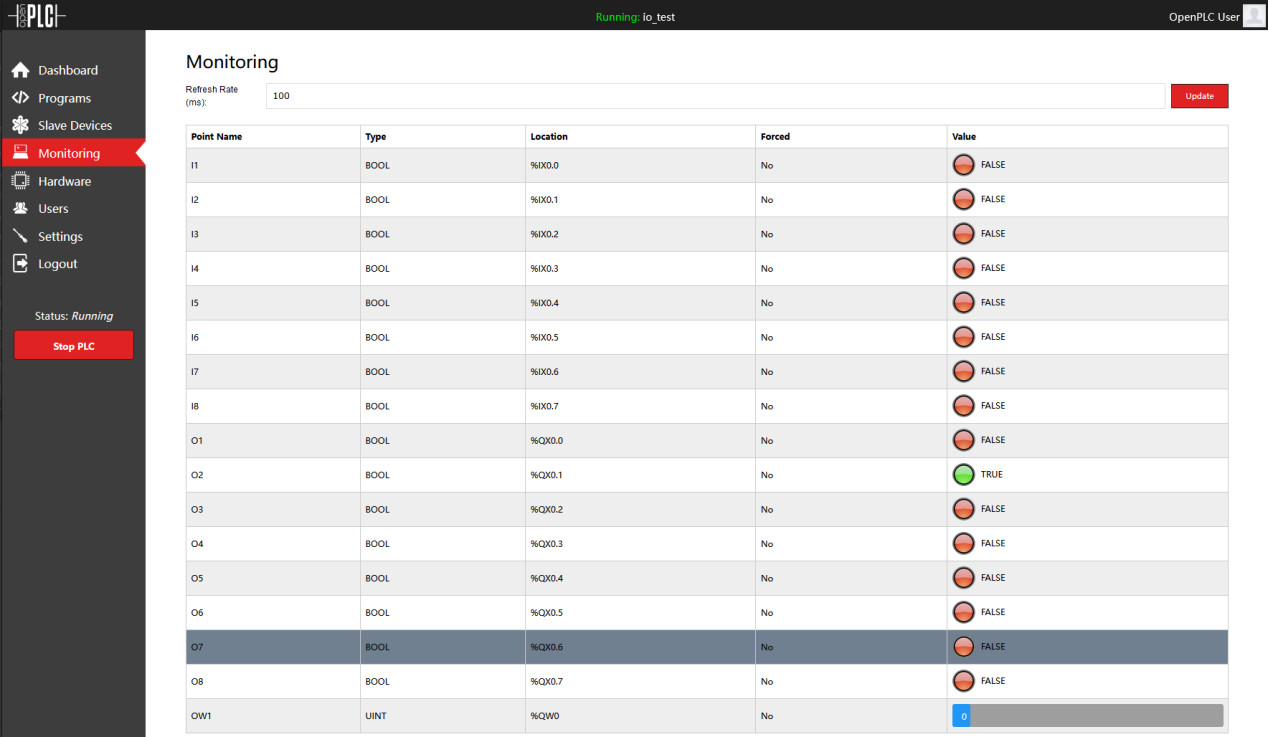
The Monitoring menu provides real-time visualization of all
I/O points defined in the ladder diagram program.Figure 5. View I/O Point Status
Table 1. I/0 Point Columns
Column
Description
Point Name
Variable name from the program
Type
BOOL for digital input an output, UNIT for analog
output
Location
IEC 61131-3-standard address
Forced
Whether the I/O point is forced to a desired value
Value
Current value. TRUE/FALSE for digital, numerical for
analog.
Configure Hardware Layer
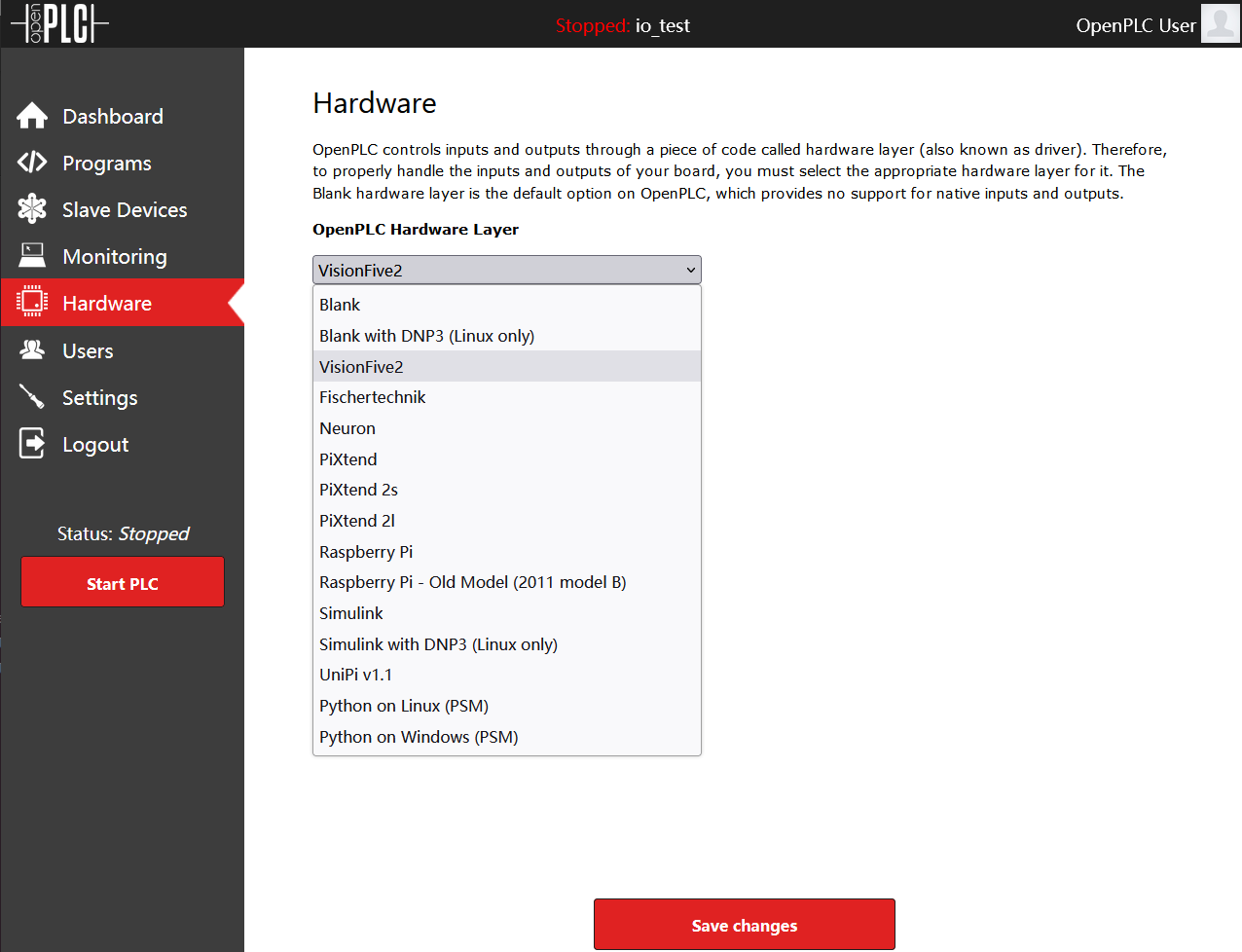
OpenPLC controls inputs and outputs through a hardware layer, which is
platform-specific code that interfaces with GPIO and peripheral hardware.Figure 6. Hardware Layer
For VisionFive 2 and VisionFive 2 Lite, the appropriate hardware layer is
automatically selected during installation. To verify or modify:
Navigate to the Settings menu.
Locate the Hardware Layer option.
Confirm that the selected hardware layer matches the target platform.
If changes are needed, select the correct hardware layer from the available
options and save.
User Management and Settings
The Users menu allows administrators to add, modify, or remove
user accounts.
The Settings menu provides options to modify server and
runtime behavior