Run RPi Demo
This section describes how to run RPi demo on VisionFive 2 or VisionFive 2 Lite to make an LED blink at custom interval or at PWM frequency.
Hardware Setup
Perform the following to connect the LED to the 40-pin GPIO Header:
- Connect GPIO36 pin of VisionFive 2 or VisionFive 2 Lite to the red line of the breadboard.
- Set up the resistor as shown in the following figure.
- Connect the longer leg of the LED to the red line of the breadboard.
- Connect the shorter leg of the LED to the blue line of the breadboard.
- Connect the GND pin of VisionFive 2 or VisionFive 2 Lite to the blue line of the breadboard.
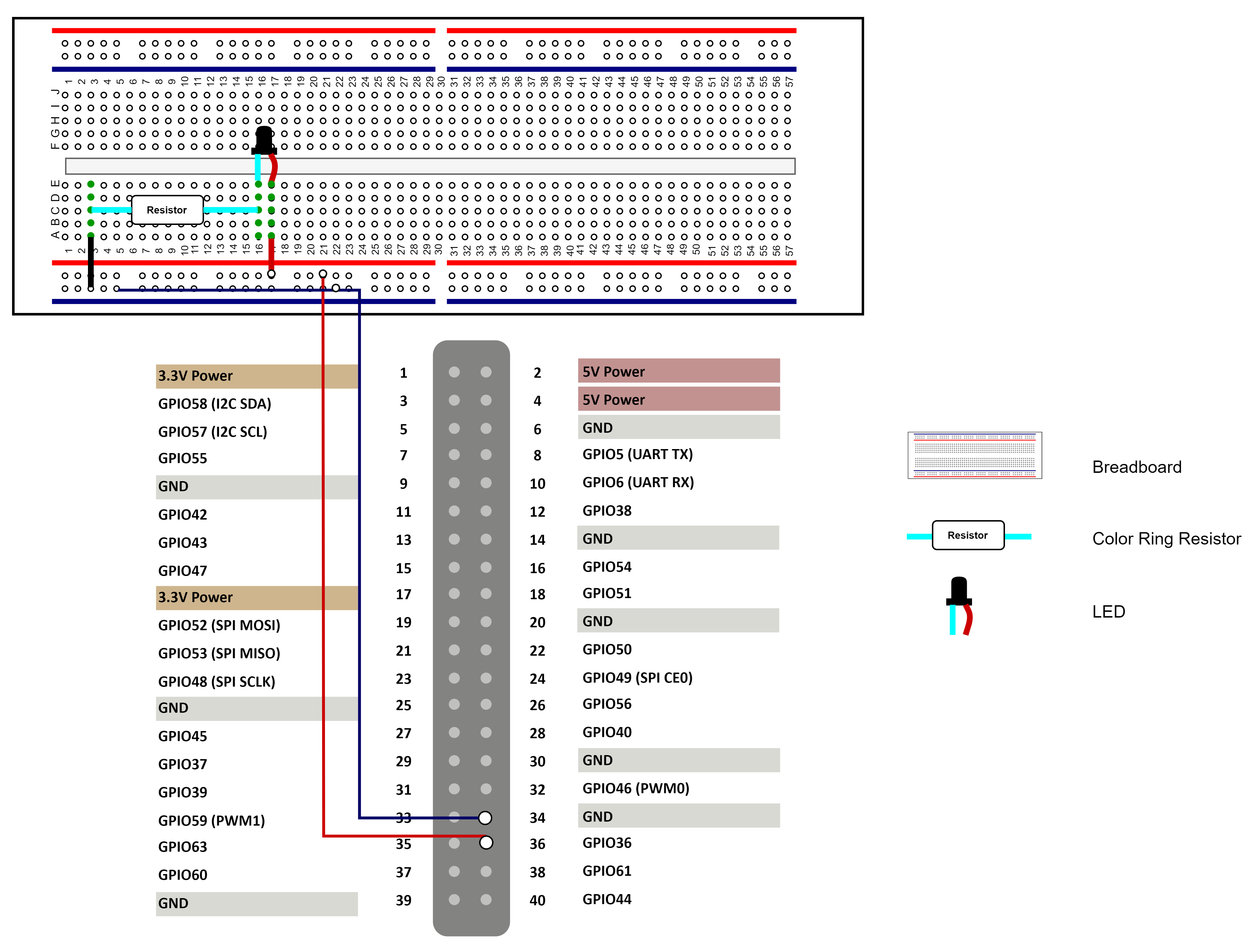
| LED | 40-Pin GPIO Header | |
|---|---|---|
| Pin Number | Pin Name | |
| Positive | 36 | GPIO36 |
| Negative | 34 | GND |
Run Demo Code
Perform the following steps on Debian of VisionFive 2 or VisionFive 2 Lite.
-
Replace the
import RPi.GPIO as GPIOcommand withimport VisionFive.gpio as GPIOin the RPi Python demo. -
Locate the directory where the test code exists.
- For LED blink at custom interval, the test code is in
#GPIO_basic#_run_on_VisionFive.py - For LED blink at PWM frequency, the test code is in
RPi_demo_#PWM#_run_on_VisionFive.py
-
Source into the Python3 Virtual Environment.
source ./myvenv/bin/activate -
Install the dependency.
python3 -m pip install pillow -
Get the directory where
VisionFive.gpioexists.python3 -m pip show VisionFive.gpioNote: The output depends on how the application is installed. -
Enter the
VisionFive.gpiodirectory.cd <VisionFive.gpiodirectory> -
Enter the
sample-codedirectory.cd ./VisionFive/sample-code/
- For LED blink at custom interval, the test code is in
- Under theAlternatively, you can also run one of the following commands.
sample-codedirectory, execute the following command to run the demo code.- For LED blink at custom interval,
run
sudo python #GPIO_basic#_run_on_VisionFive.py - For LED blink at PWM frequency,
run
sudo python RPi_demo_#PWM#_run_on_VisionFive.py
sudo python3 #GPIO_basic#_run_on_VisionFive.pysudo python3 RPi_demo_#PWM#_run_on_VisionFive.pyNote: For details about the source code, see RPi_demo Source Code. - For LED blink at custom interval,
run
-
(Optional) Exit the Python3 Virtual Environment.
deactivate