Run Docker
This section describes how to run Docker on VisionFive 2 or VisionFive 2 Lite.
Flash OS Image
To flash the OS image:
- Flash Debian OS into a Micro-SD card as described in Flash OS to a Micro-SD Card.
- Log into the Debian and make sure VisionFive 2 or VisionFive 2 Lite is connected to the Internet. For details, see Log into Debian.
Enable Missing Kernel Configuration Options
The steps below explain how to check your kernel configuration to see whether they
meet the Docker running requirements.
- Get check-config.sh script provided by the Docker open source team from
https://github.com/moby/moby/blob/master/contrib/check-config.sh and run the following
command:
$ ./check-config.sh
The following is the example output: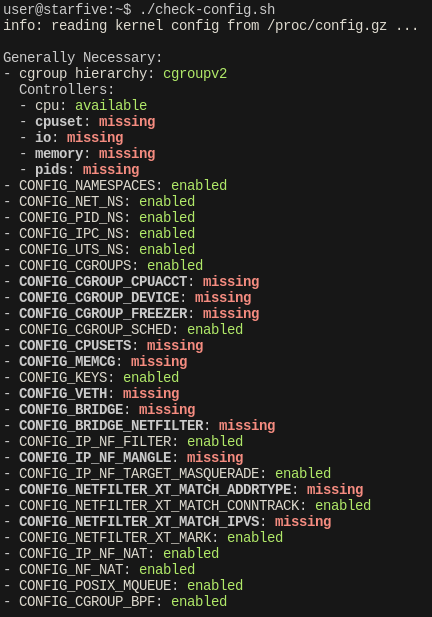 The output results are mainly divided into 2 parts:
- Generally Necessary: Indicates the necessary
configuration. The
missingoptions in the figure need to be opened in the kernel configuration to recompile and burn the kernel to support Docker. - Optional Features: Indicates optional configuration, and can be opened as needed.
- Generally Necessary: Indicates the necessary
configuration. The
- For the missing options required in the necessary configuration, refer to Compile and Install Kernel Components Individually to pull codes, switch branches, and apply the default kernel options.
- After applying the default options, configure the corresponding kernel
options:
- To enable CONFIG_CGROUP_*, CONFIG_CPUSETS,
CONFIG_MEMCG and items under Controller, you need
to enable the following options under :
Figure 1. Configure Kernel Options 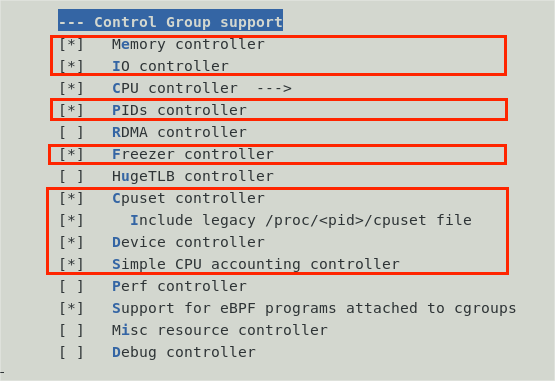
- To enable CONFIG_VETH, you need to enable Virtual ethernet
pair device options under :
Figure 2. Virtual ethernet pair device 
- To enable CONFIG_BRIDGE, you need to enable 802.1d
Ethernet Bridging option under :
Figure 3. 802.1d Ethernet Bridging 
- To enable CONFIG_BRIDGE_NETFILTER, you need to enable
Bridged IP/ARP packets filtering option under :
Figure 4. Bridged IP/ARP packets filtering 
- To enable CONFIG_NETFILTER_XT_MATCH_ADDRTYPE, you need to
enable “addrtype" address type match support option under :
Figure 5. “addrtype" address type match support 
- To enable CONFIG_IP_NF_MANGLE, you need to enable Packet
mangling option under :
Figure 6. Packet mangling 
- To enable CONFIG_NETFILTER_XT_MATCH_IPVS, you need to enable
the following 2 options:
- Enable IP virtual server support option under :
Figure 7. IP virtual server support & "ipvs" match support 
- Enable "ipvs" match support option under :
Figure 8. "ipvs" match support 
- Enable IP virtual server support option under :
- To enable CONFIG_IP6_NF_IPTABLES, you need to enable IP6
tables support (required for filtering) option under :
Figure 9. IP6 tables support (required for filtering) 
- To enable CONFIG_NF_TABLES_BRIDGE, you need to enable
Ethernet Bridge nf_tables support (NEW) option under :
Figure 10. Ethernet Bridge nf_tables support (NEW) 
- After selecting the above options, you still need to enable the
following options under , otherwise, Docker does not start properly:
Figure 11. Netfilter nf_tables_support 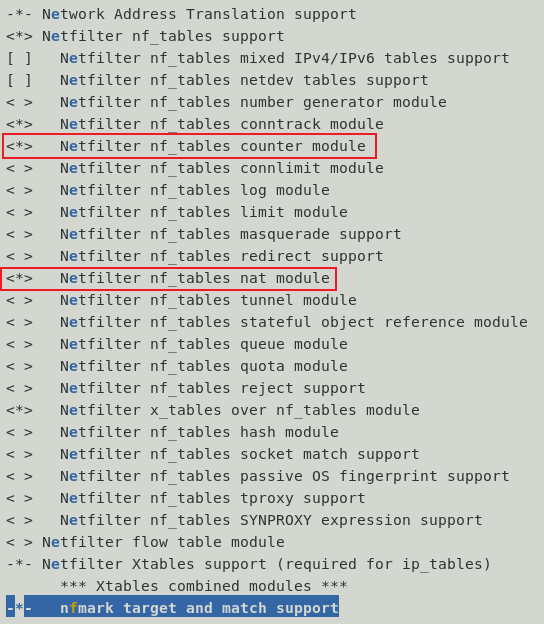
- To enable CONFIG_CGROUP_*, CONFIG_CPUSETS,
CONFIG_MEMCG and items under Controller, you need
to enable the following options under :
Install Docker
To install Docker:
-
Run the following command to install Docker:
$ sudo apt install docker.io -y -
After installation, reboot the system.
$ sudo reboot
Boot Docker on VisionFive 2 or VisionFive 2 Lite
To boot Docker on the board:
-
Execute the following commands in order:
dockerd
systemctl start docker
Run the following command to check the Docher status:
If the output results are notsystemctl status dockerenabled,Active: active (running), restart the system and run the command again.-
Run the following command to check the Docker system information:
docker info -
Download Alpine Docker image of the RISC-V version and run the following:
docker pull riscv64/alpine:edge docker run -it alpine:edge -
Run the following commands in the Docker image to verify if Docker runs successfully:
cat /etc/os-release
ifconfig
arp –a
ping <Website>